Cricut Print and Cut Stickers for Journaling
Project Overview
Make your journal uniquely yours withCricut Print and Cut Stickers! They're easy to print and cut, perfect for adding a fun, personal touch to your pages.
Are you a planner and journal junkie too?
My latest obsession is carrying myjournaleverywhere, writing down ideas, making lists, and capturing special moments.
And, of course, no journal page is complete without stickers!
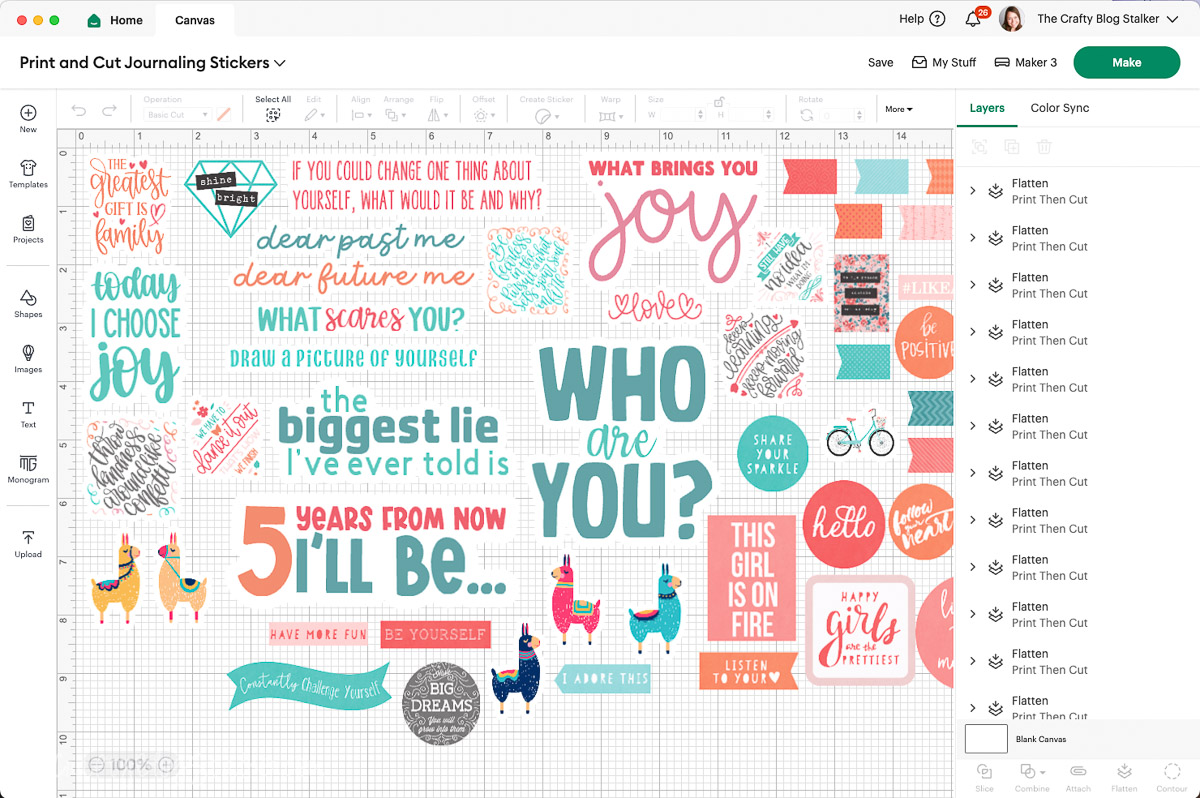
That's why I created this sticker-making file in Cricut Design Space filled with writing prompts, inspirational sayings, and-because they're adorable-cute llamas!
I have this complete project ready to go inCricut Design Space.
Simply open the project and click "Make".
If you want to change the project, click "Customize".
These stickers were designed for my 7.5" x 5.5" journal, but you can resize them as needed.
Once you select Make It, you will be taken to your mat preview. This is the arrangement of the stickers on your printable sheet and cutting mat.
Select Continue in the bottom right corner.
On the next screen, click "Send To Printer". Make sure your printer is connected to your computer or device.
On the Print Setup, you can choose how many copies to print and whether to add bleed.
Bleed will extend the outer border of the sticker so that when you remove it from the sheet, there is no white border.
I already have a white border around all of these stickers, so bleed is unnecessary.
If this is the first time you are doing a print and cut with, you may want to print a test page to make sure it looks good and the sticker paper feeds ok into your printer.
Once you are ready, select "Print" to send to the printer. OOHH look how pretty!!
The black frame around the images is the registration guide for when you go to cut on the Cricut machine.
The machine reads those lines and knows it is cutting in the right spot.
You will have to go through the print screen for each sheet of stickers. It will not print all the sheets at once.
Now that the sheets are printed, it is time to cut them!
In Cricut Design Space select Sticker Paper.
If you don't see it displayed, select "Browse All Materials" and find your material from that menu.
For the pressure, select "Light" if you want it to cut through only the top sticker layer, or select "More" to cut through both the sticker and liner.
Lay the printed sticker sheet into the top left corner of the Standard Grip Mat and follow the prompts on the Cricut Maker.
When the arrow light blinks, load the mat.
When the Cricut light blinks, push to begin cutting.
Once the Cricut has begun, you will see a small light underneath the blade housing.
The machine is searching for those registration marks to confirm where it should cut. It will check for the line in several places.
Then the Cricut Maker will begin cutting out your fabulous new planner stickers!
Once the first sheet is complete, remove from the mat and place the next printed sheet on the mat. Repeat until all sheets are done.
Depending on the cut pressure, you may need to weed the sticker sheet.
I did light pressure, so only the first layer was cut.
Lift up a corner of the sheet with a weeding tool and gently pull to remove the excess.
As you can see, I did this while my sticker sheet was still on the mat, but it works the same if you remove the sheet first.
Your stickers are now ready to use!
When binding my handmade journal, I knew I would want a few pages for stickers, so I added a few sticker paper pages.
So I could move the stickers over to my journal.
It took some clever arranging but I got them all transferred to my journal.
Visit my completejournal tutorialto see how it all came together!
That is fine if you don't want to create your own unique journal.
You can print and cut your stickers, then keep them with your journal supplies!
Do you want to learn sticker design?
You candesign and cut stickerswithout Cricut Access and I'll show how!
The problem I see the most is that the Cricut is not cutting correctly, even with the registration marks.
If this happens to you, trycalibratingyour Cricut's print and cut function.
The problem can also be with your home printer. Make sure you can print high-quality images and designs.
I use anHP Envy Inspire Printerand I absolutely love it! It scans, copies, and prints beautifully.
Materials Needed
- Colored cardstock or patterned paper
- Craft scissors or paper cutter
- Double-sided tape or glue stick
- Ruler and pencil
- Decorative elements (ribbons, stickers, washi tape)
- Cutting mat
- Scoring tool or bone folder
- Embellishments (buttons, sequins, stamps)
Step-by-Step Instructions
Prepare Your Materials
Gather all the required materials and tools. Make sure you have everything listed in the materials section before starting.
Set Up Your Workspace
Find a clean, well-lit area to work. Cover your surface with newspaper or a craft mat to protect it.
Follow the Main Steps
Carefully follow the instructions step by step. Take your time and don't rush through any part of the process.
Add Personal Touches
Once you've completed the basic project, feel free to add your own creative touches and personalization.
Final Assembly
Put all the pieces together according to the instructions. Double-check that everything is secure and properly attached.
Pro Tips
💡 Tip: Take your time and enjoy the creative process
💡 Tip: Don't be afraid to experiment with different colors or materials
💡 Tip: If you make a mistake, don't worry - it's all part of learning
💡 Tip: Share your finished project with friends and family
💡 Tip: Take photos of your progress to document your crafting journey
You Might Also Like
References & Further Reading
Explore these trusted resources to deepen your crafting knowledge and find more inspiration for your next project.
- Do It Yourself — Wikipedia Overview of DIY culture, history, and common techniques across woodworking, home improvement, and crafting.
- Handicraft — Wikipedia Background on traditional handicrafts, materials, and the cultural significance of handmade goods.
- Instructables Community-driven DIY project library with step-by-step photos, videos, and printable instructions.
- Woodworking — Wikipedia Techniques, tools, joinery methods, and the history of working with wood as a craft.
- Sewing — Wikipedia History and modern practice of sewing, including stitches, equipment, and fabric choices.
- Bob Vila Trusted home improvement, tool reviews, and illustrated how-to guides from a household name.
- Papercraft — Wikipedia Art forms that use paper as the primary medium, from origami to paper-mache.
- Michaels — Project Ideas Project walkthroughs, material lists, and weekly craft ideas from a major arts & crafts retailer.